Annotation - Standard Protocol
First Half
Senior Annotation Group
You will annotate 40 images using the standard protocol. In this method, simply annotate a single boundary around the relevant node.
[1] Setting up the Annotation Interface
Please follow the following steps to prepare for annotation.
1 ⇝ Open the annotation interface (opens in new tab).
The below images will feature an identical interface at mua.cs.washington.edu, since they are from the primary annotator group. You will be annotating on mua-test.cs.washington.edu, a duplicate for senior annotators.
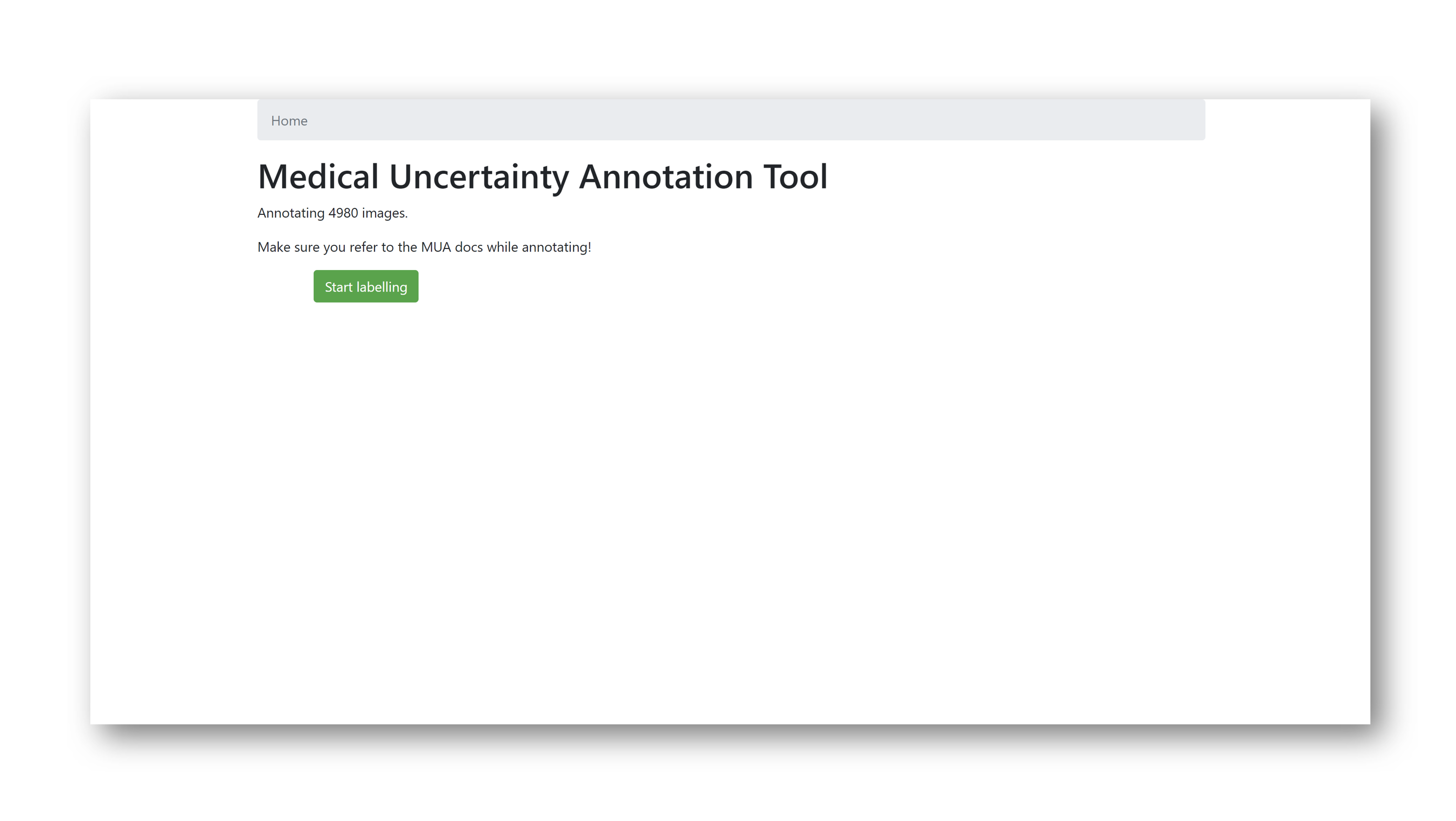
2 ⇝ Click "Start labelling".
3 ⇝ Open the annotation assignments (opens in new tab).
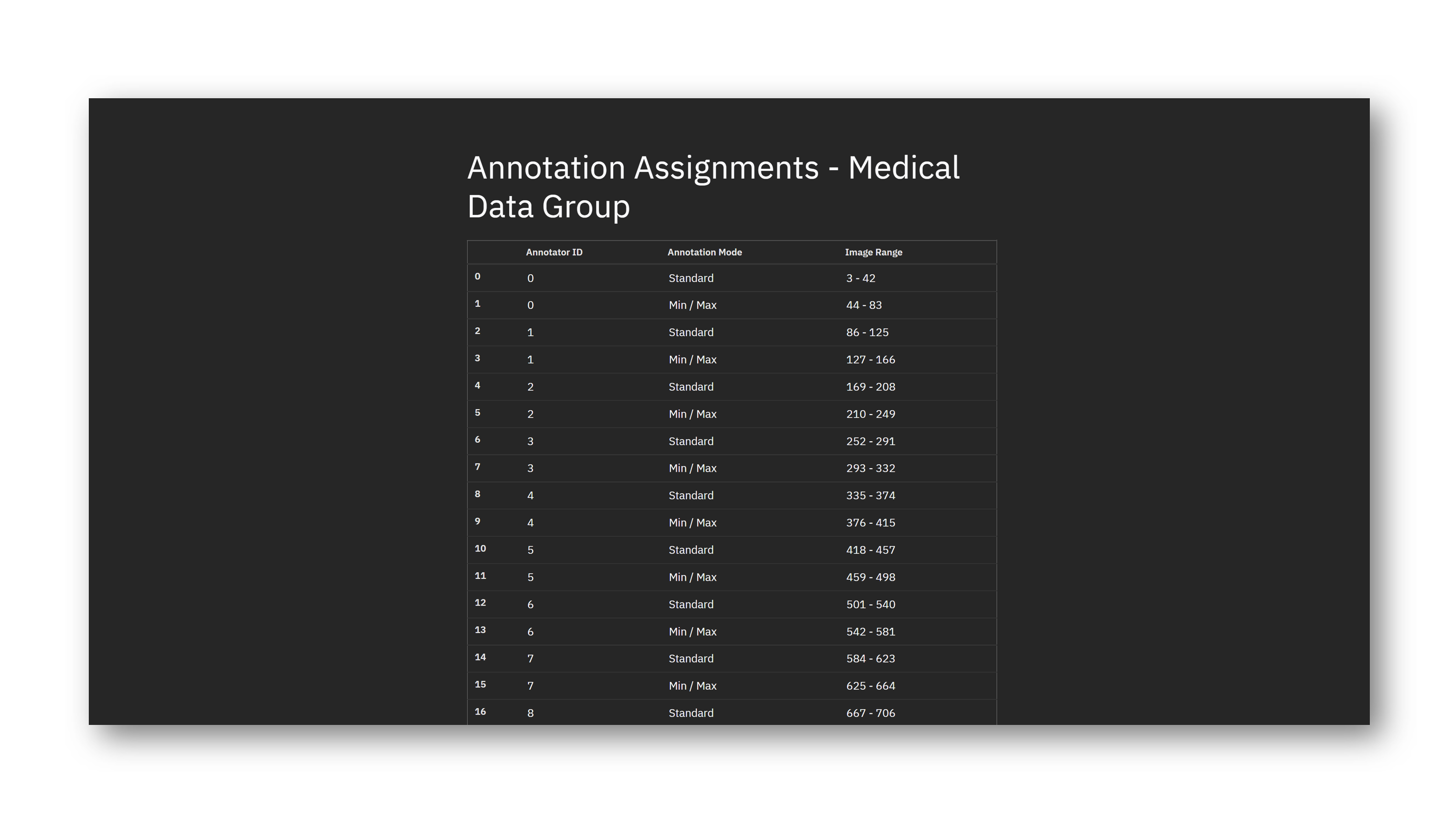
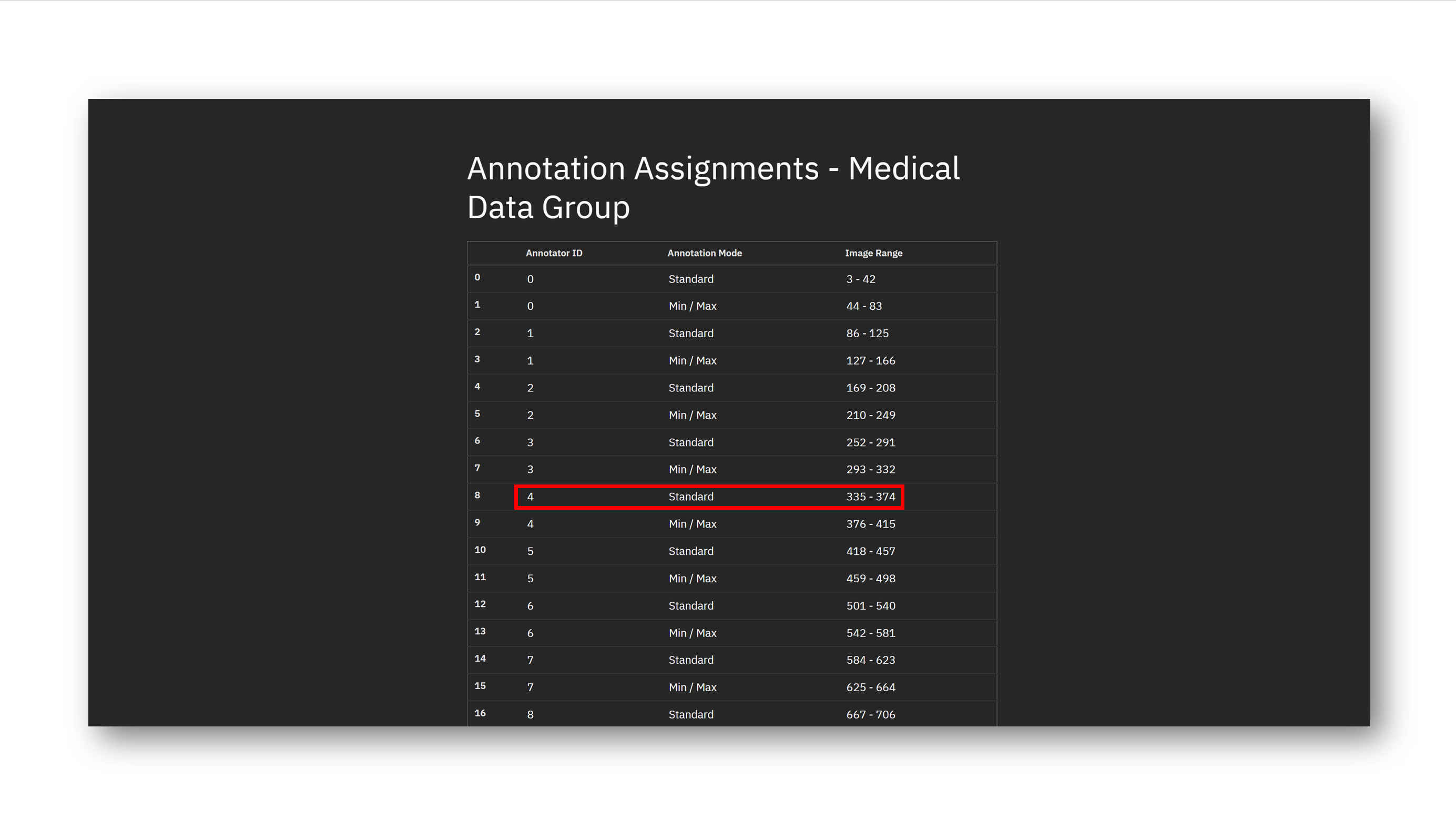
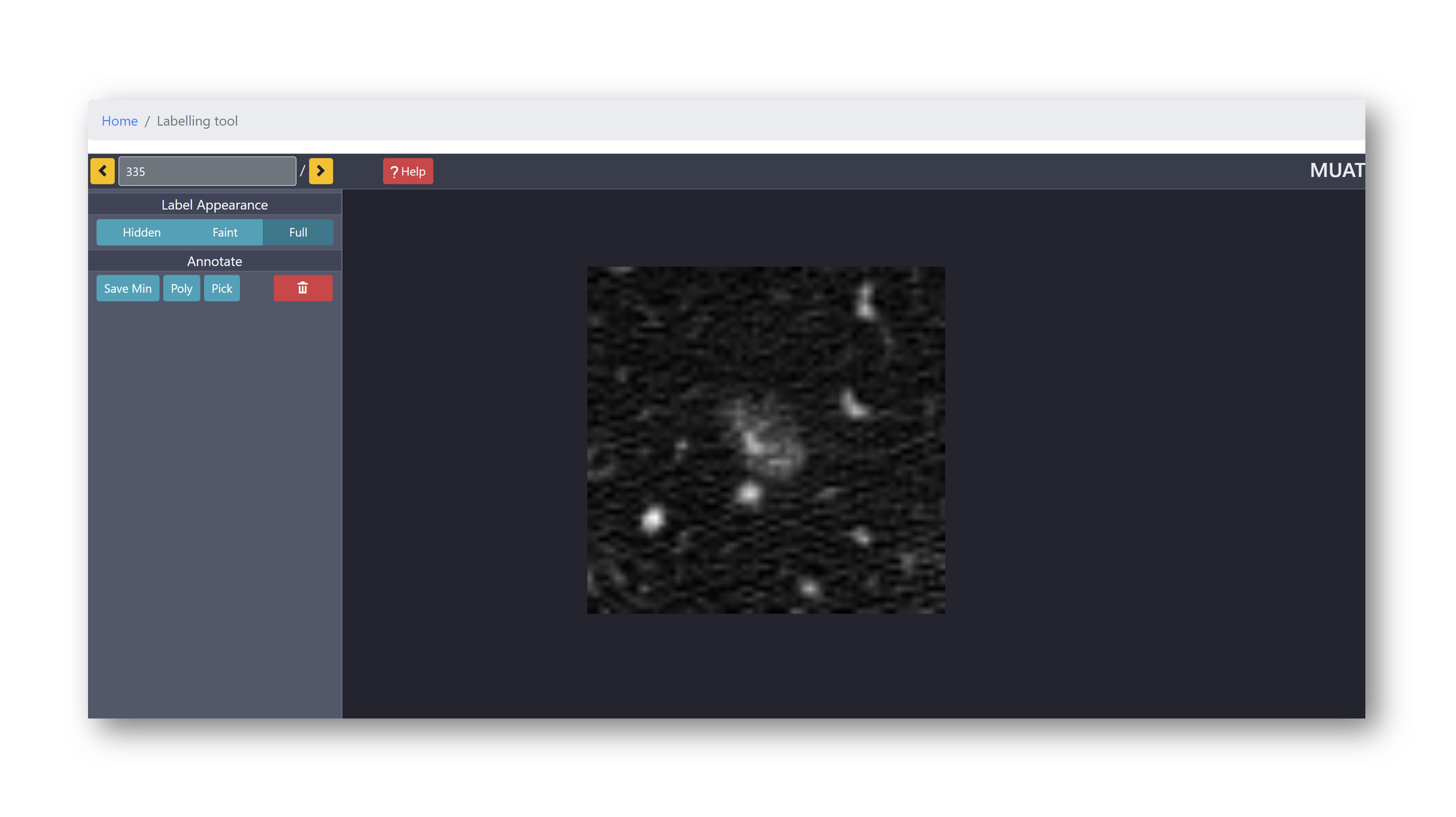
4 ⇝ Locate your assigned image range for standard annotation. Keep this tab open so you can refer back to it if needed. For instance, suppose that you are annotator ID #4. Your assigned image range for standard annotation is 335 - 374.
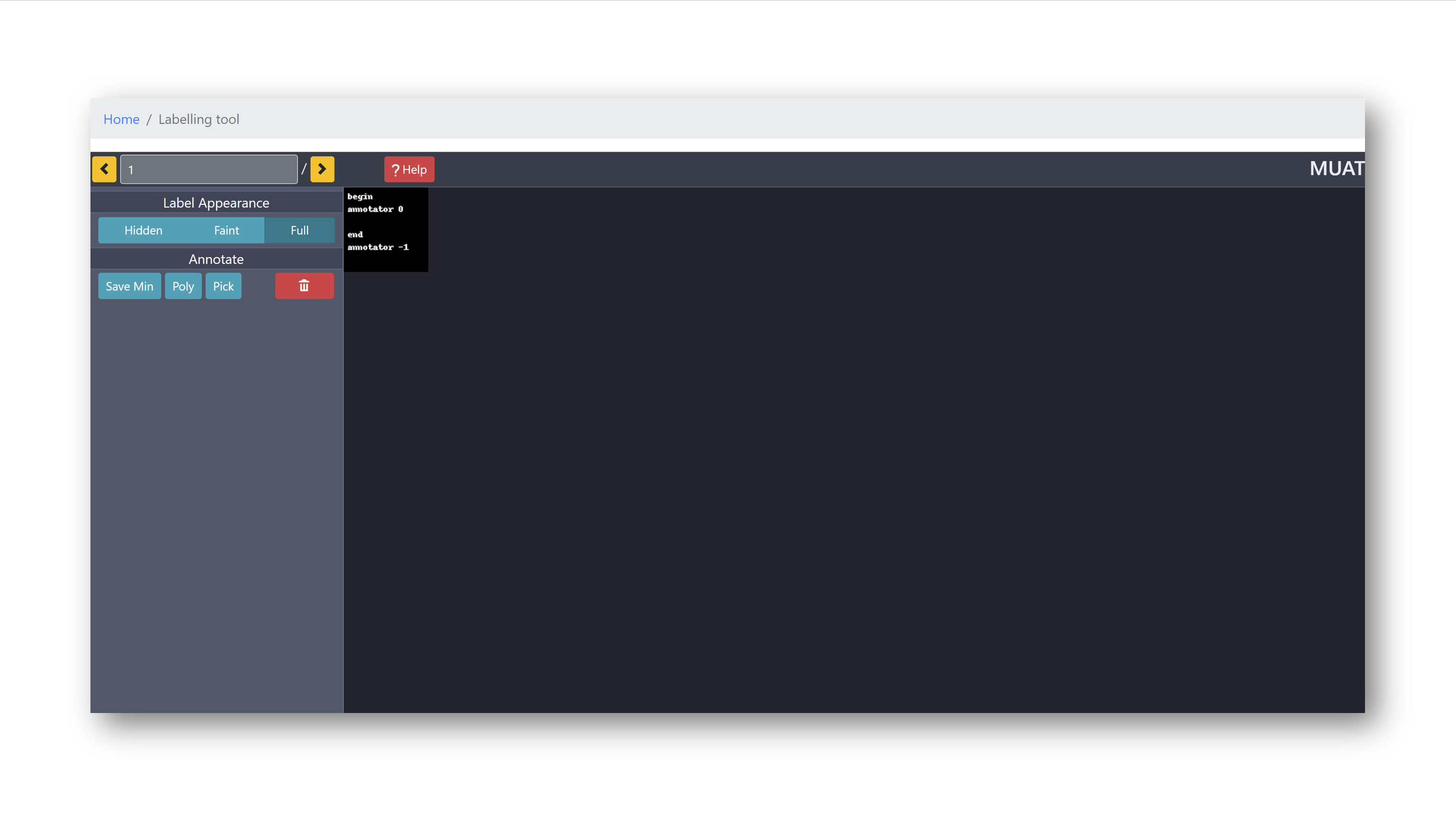
5 ⇝ Locate the image selection box at the top left of the annotation interface.
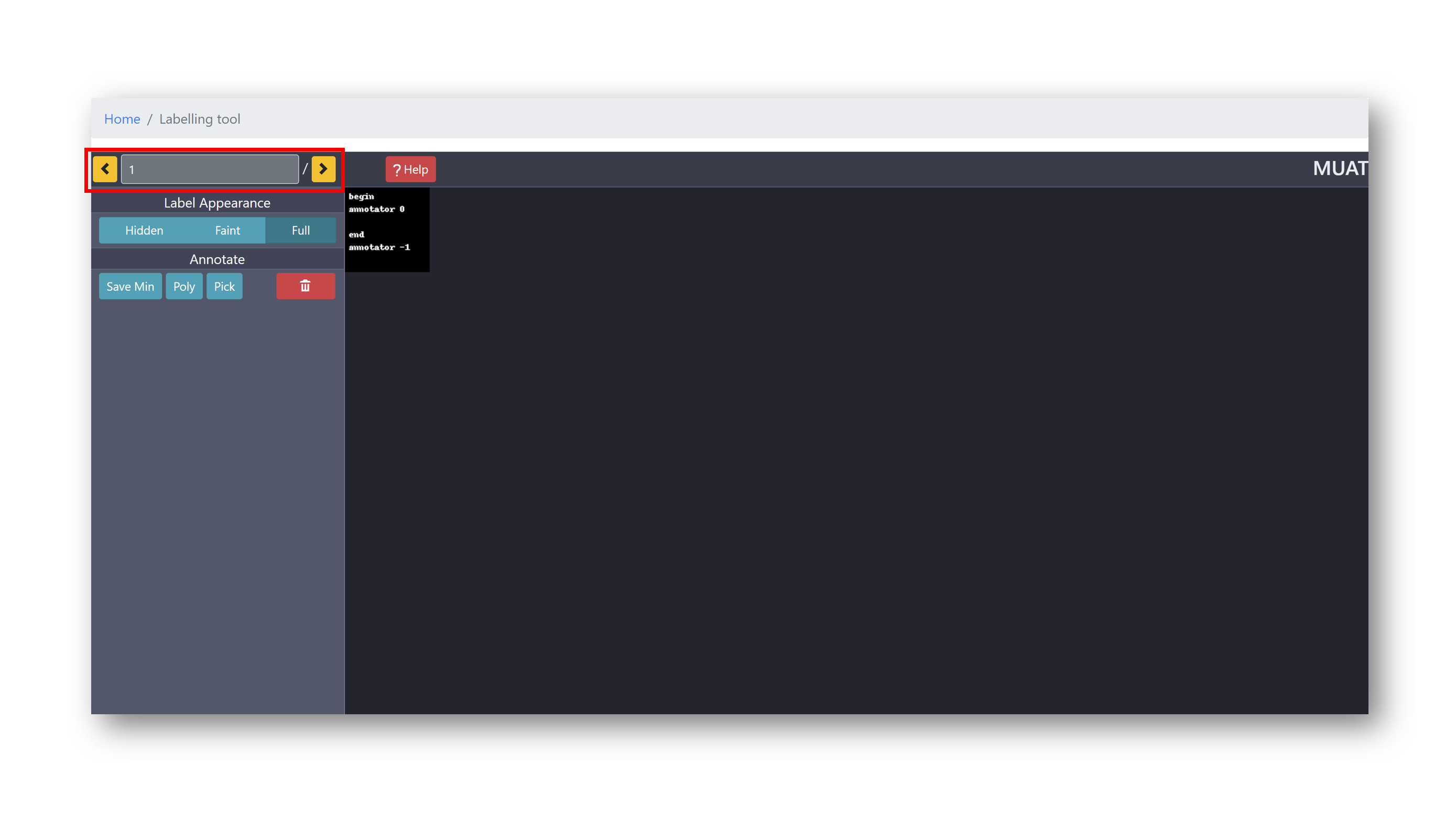
6 ⇝ Type in the first number in your range. This is the first image you will be annotating.
To confirm that this is indeed the first number in your range, you can navigate to the previous image (click the left arrow button): you should see a black image with white text reading "begin standard annotation mode".
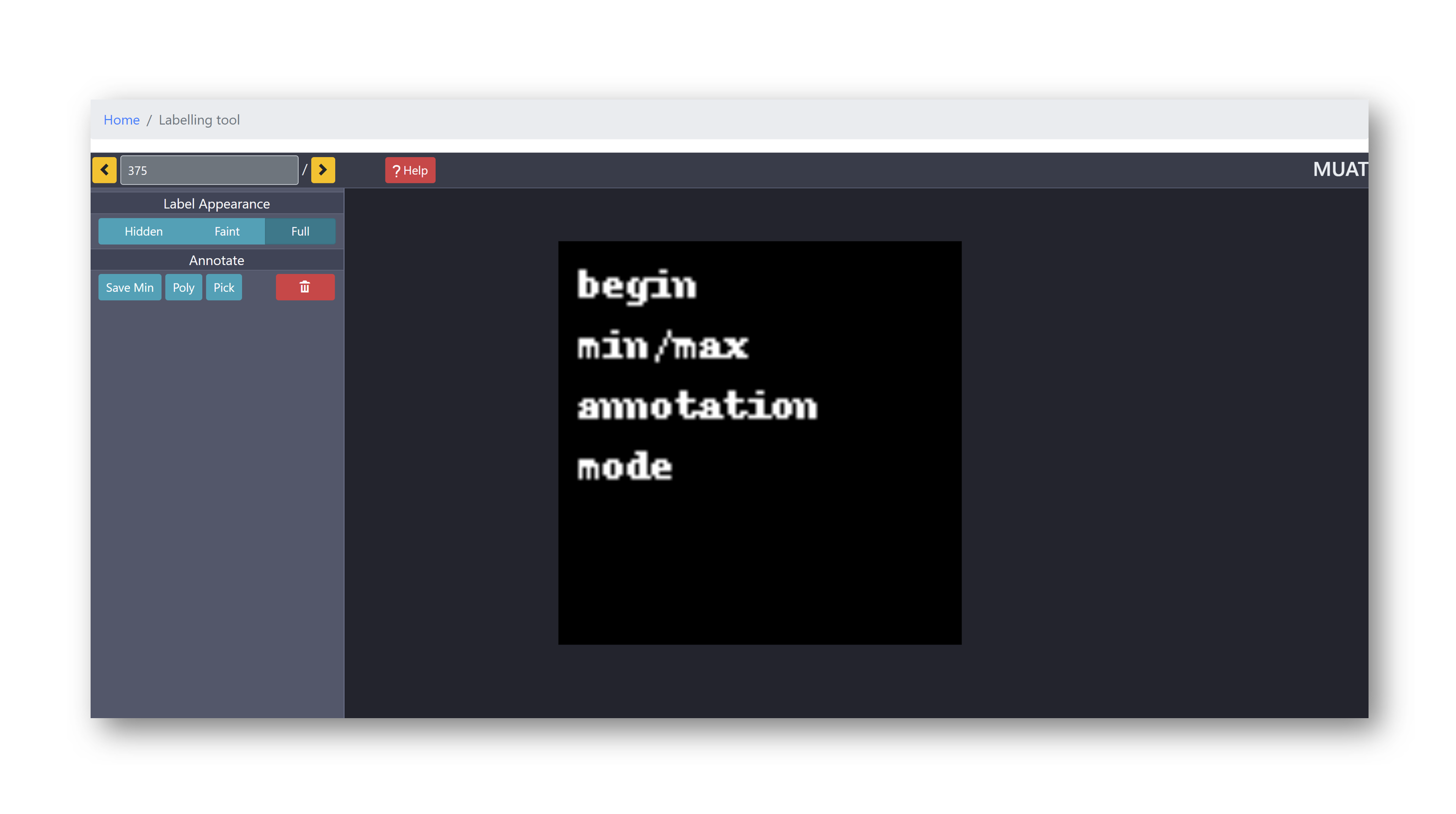
7 ⇝ You will keep on annotating until you hit the end of your range - you will see a black image with white text on it indicating the range has ended, such as the following (but may not contain the same text):
[2] Annotating with the Standard Protocol
The annotation interface is designed to be simple. You will annotate a series of images using a poly tool. To zoom in, scroll forward; to zoom out, scroll back. To move the image around, right click on the image and drag it into the desired location.
To begin, click on Annotate > Poly. This will automatically set you up to draw a polygon. Move your cursor over the image, and click where you want to make a vertex. When you are finished, right-click. This connects your most recently drawn vertex to the first vertex, enclosing a polygon.

If you are unhappy with an annotation, you can delete it. Make sure that the appropriate annotation is selected (it should have red borders). If you created it recently, it may already be selected. You can select an annotation by first pressing Pick, then clicking on the desired regions. Then, click on the red trash can button.

A more convenient way to draw polygons is to 'free-draw', in which you can freely move your mouse to define a curved region. To do this, click on Annotate > Poly, but hold shift and click while you move your mouse around the desired region. When you are finished, right-click. This will similarly connect the most recently drawn point to the first vertex, enclosing the polygon.

Rather than deleting annotations, you can also add and subtract regions to edit an existing annotation.


You can also change the opacity of the annotations by changing the Label Appearance setting. This can let you toggle quickly between the original image and the annotated image to determine if the annotations fit the image.
For the duration of these images, do not touch the Save Min button.
[3] Examples
Consider the following examples of ways one could annotate an image using the standard protocol. Feel free to refer back to these examples as needed while you are annotating.








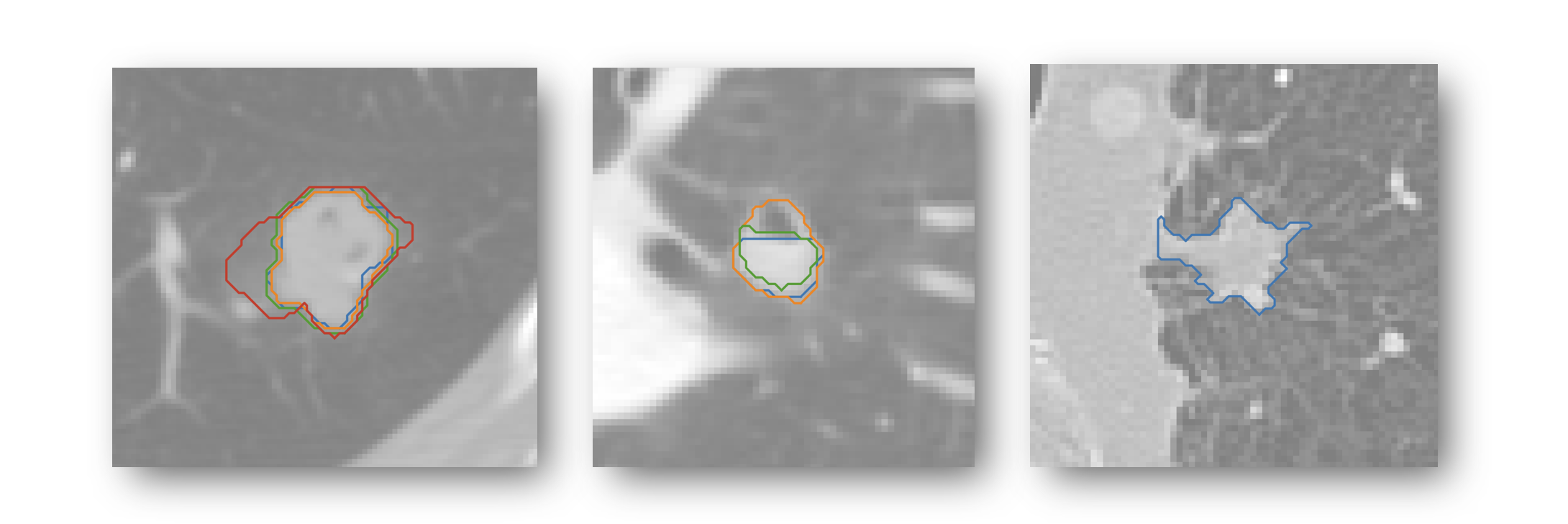
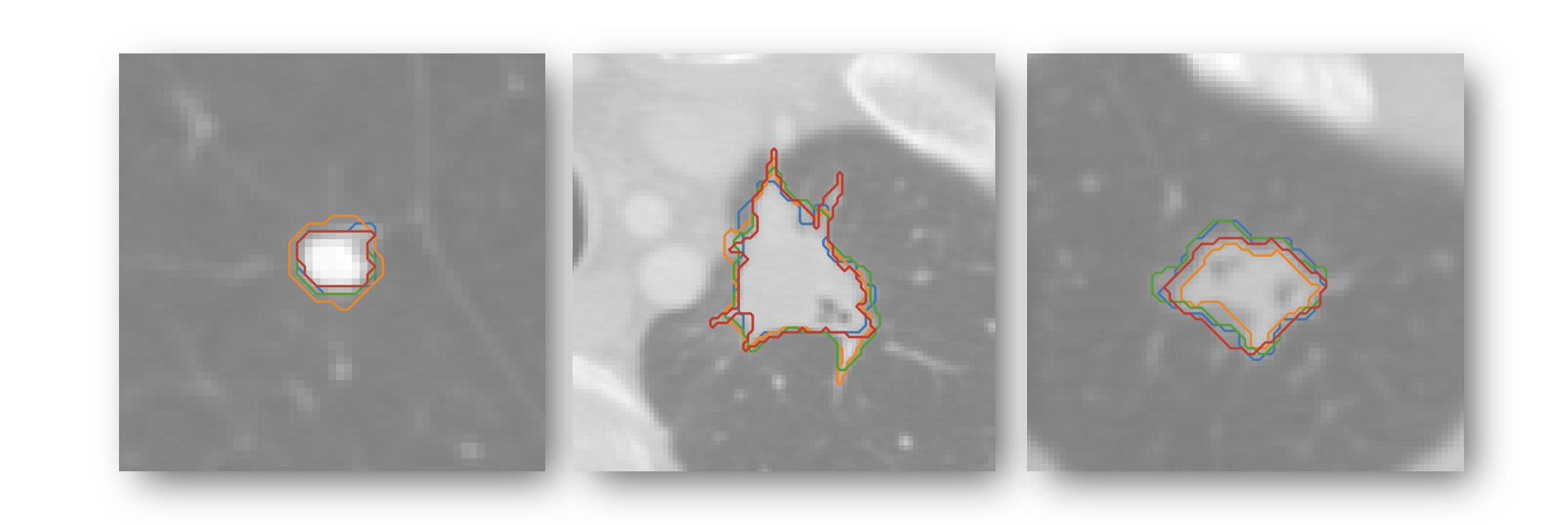
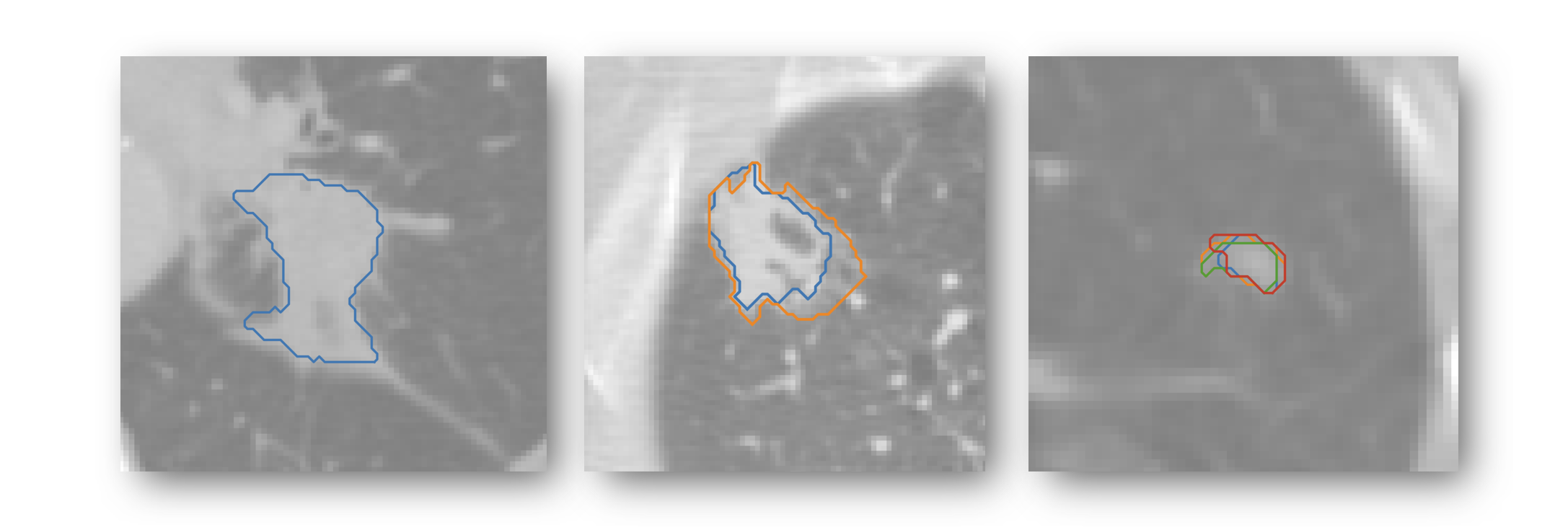
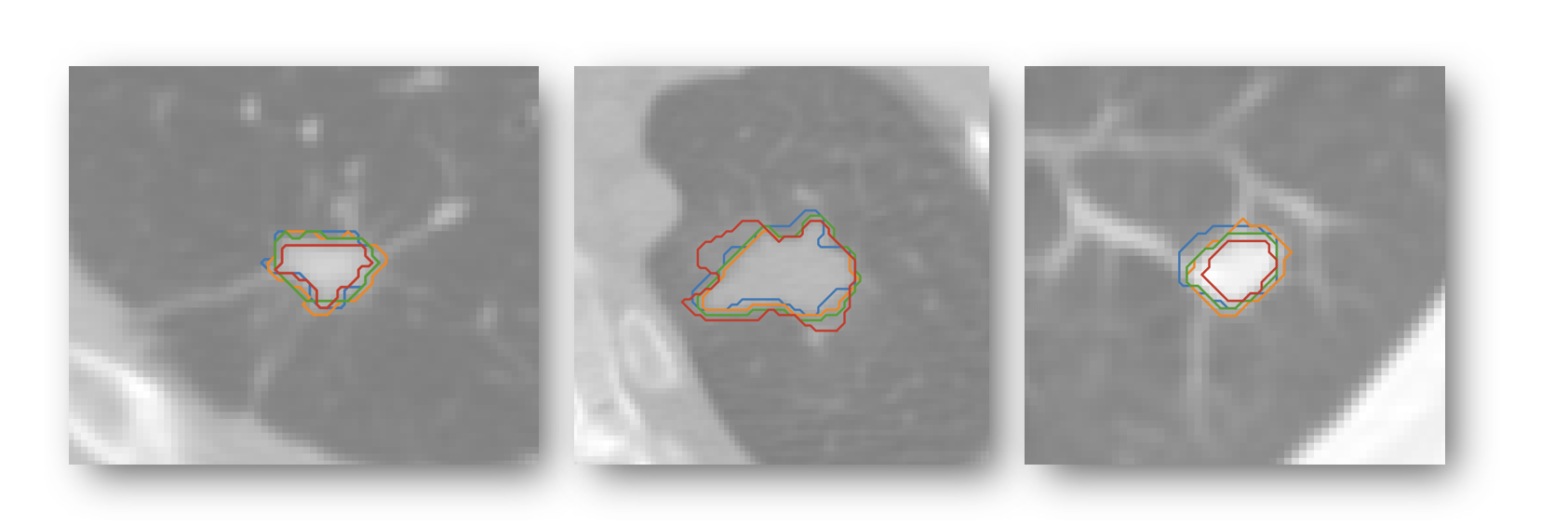
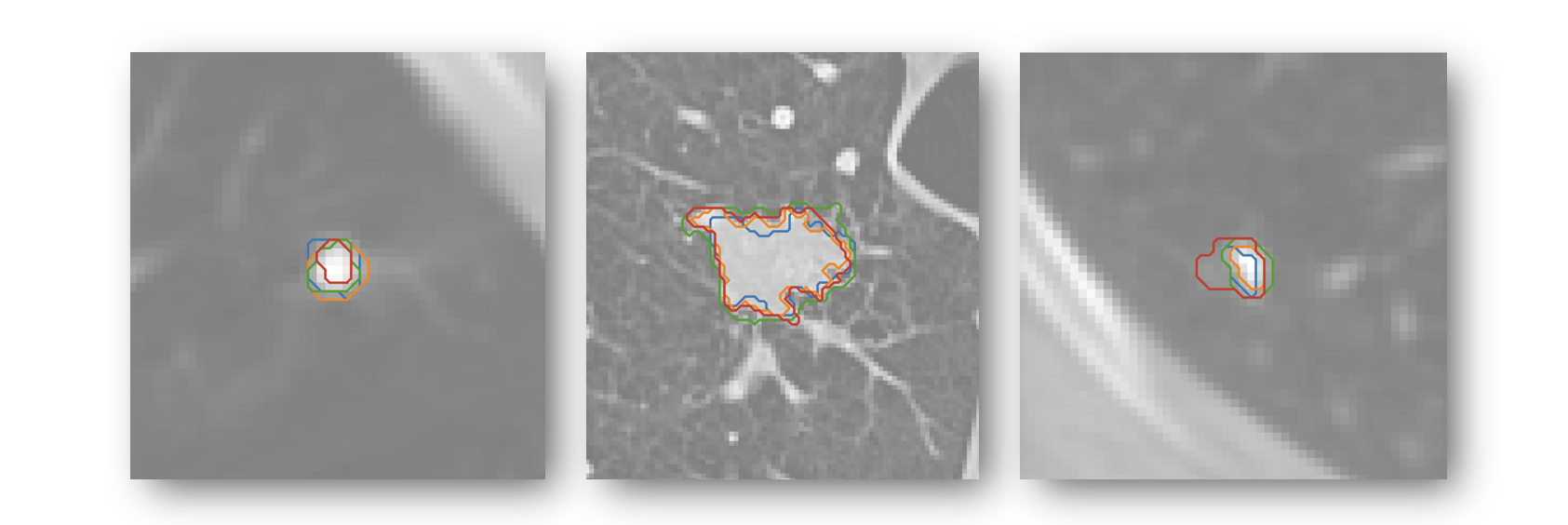
Additionally, use the following examples of annotations directly taken from the LIDC-IDRI dataset as references:
[4] Start Annotating
You may now begin annotating your range. Please ask your session lead if you have any questions or difficulties. You should take at most 30 to 40 seconds for each image, although you may be slower at first as you are acquainting yourself with the annotation interface.
[5] Finished?
Congradulations! You're halfway done. Let's Go →