Annotation - Min/Max Protocol
First Half
Medical Data Track, Session B
You will annotate 40 images using the min/max protocol. In this method, you will draw a 'min' region and a 'max' region. The 'min' annotation represents the region you are very sure should be annotated. The 'max' annotation is less strict, and includes all regions which could possibly be annotated. It follows that any regions outside of the 'max' annotation are very likely not to be annotated.
This protocol allows you to represent uncertainty directly in the annotations. For instance, if part of an object is blurred or darkened, making it difficult to classify either as part of or not part of the annotation, you can exclude it from the min region but include it in the max region.
[1] Setting up the Annotation Interface
Please follow the following steps to prepare for annotation.
1 ⇝ Open the annotation interface (opens in new tab).
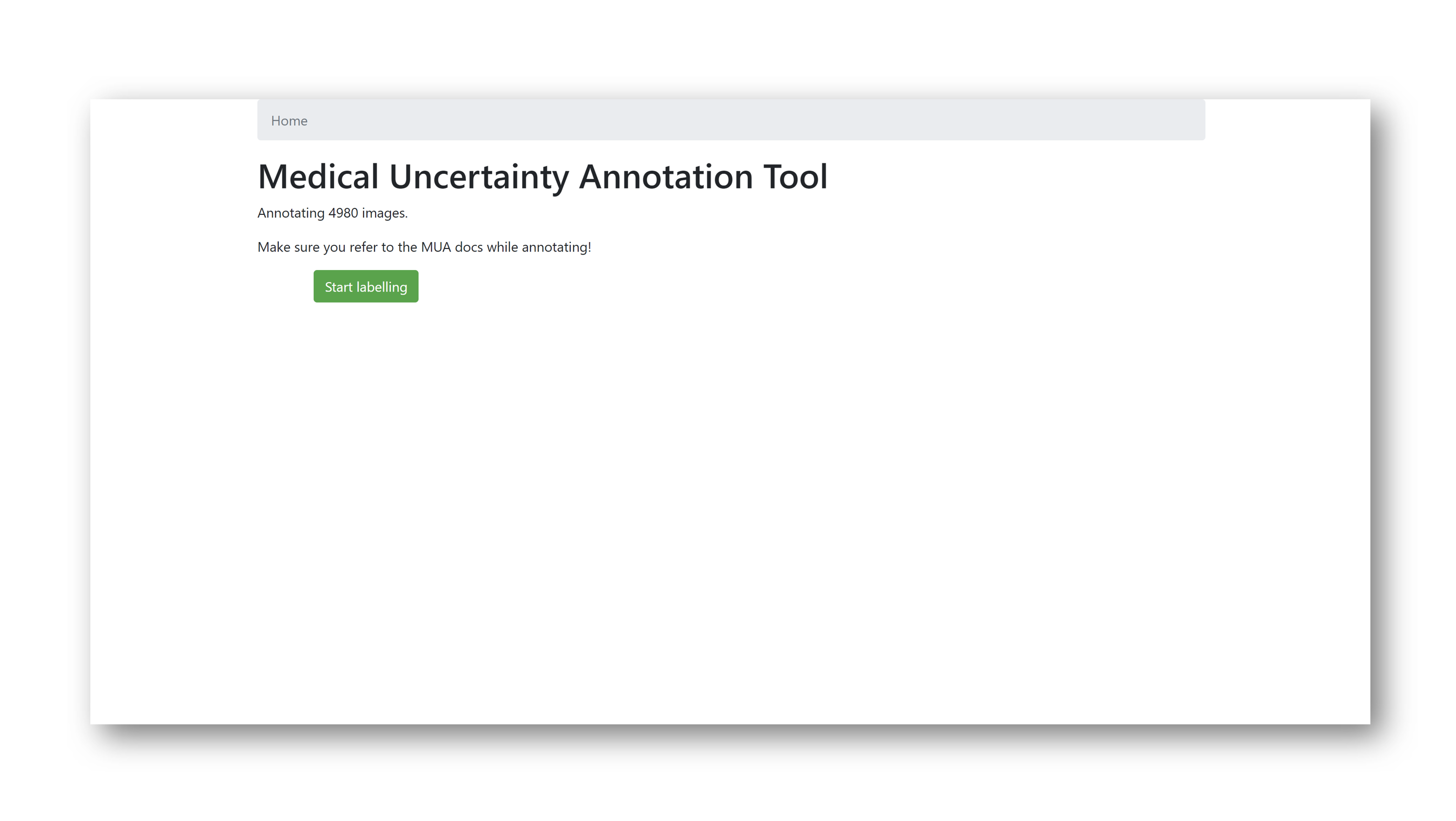
2 ⇝ Click "Start labelling".
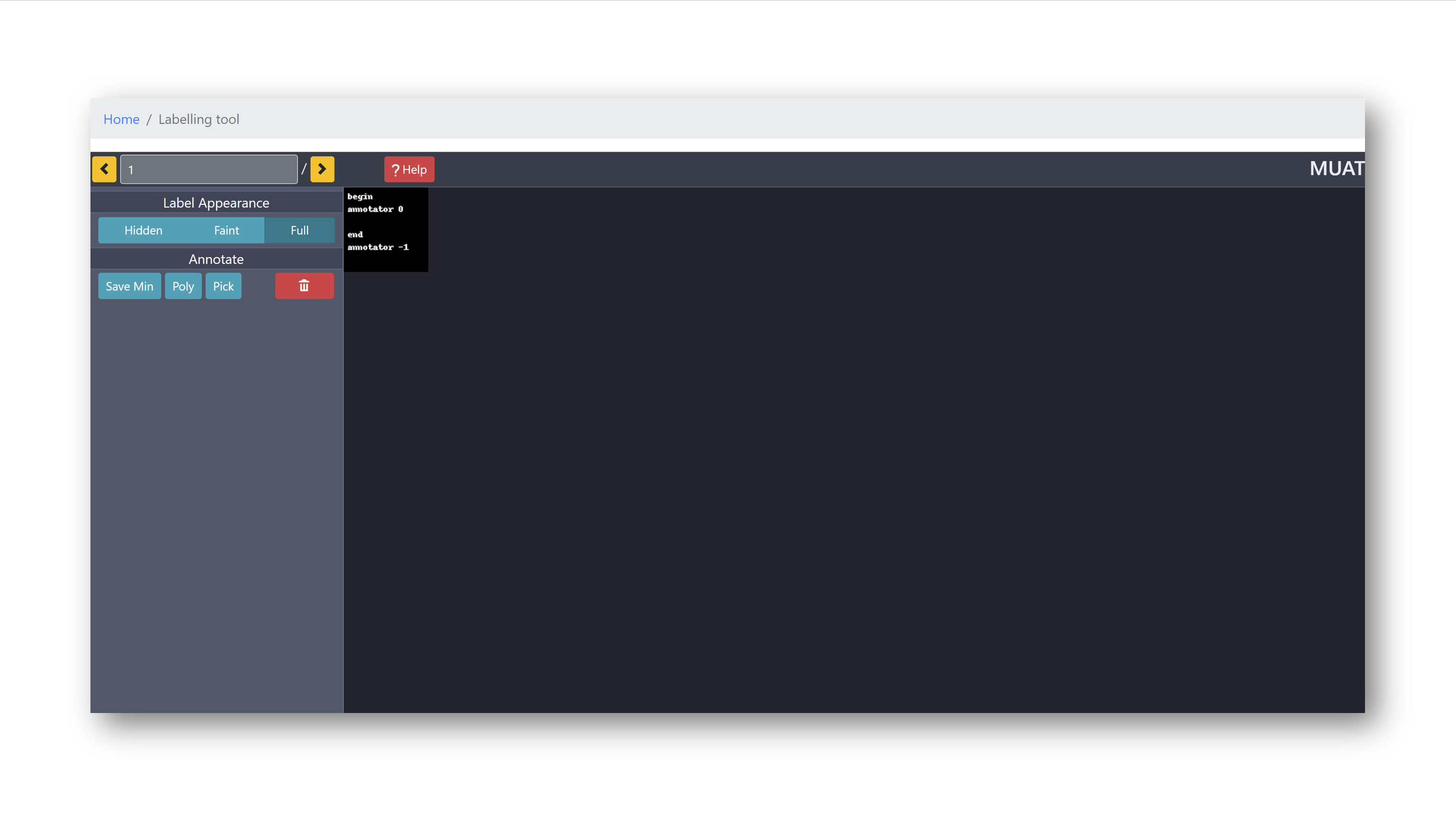
3 ⇝ Open the MD annotation assignments (opens in new tab).
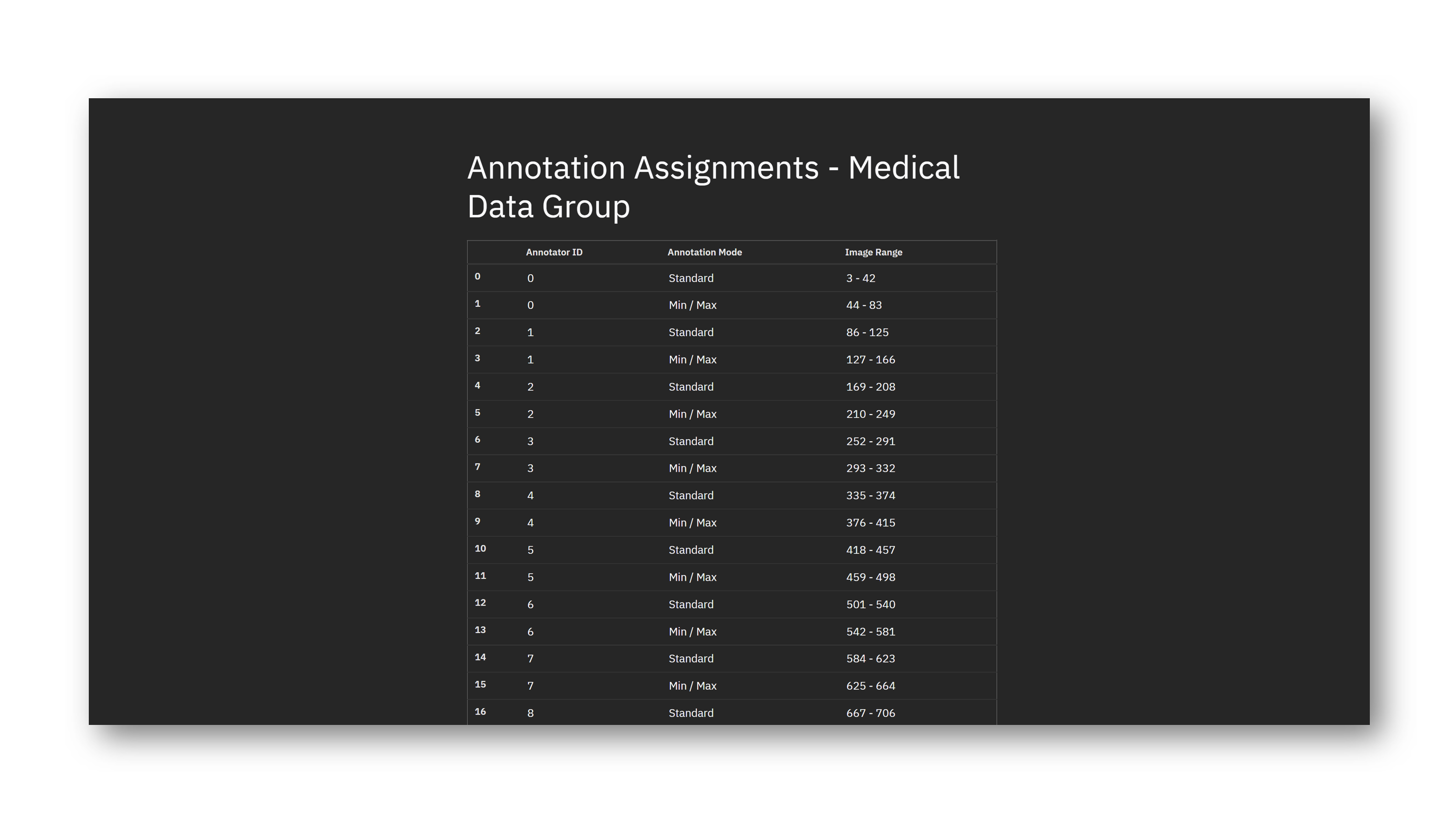
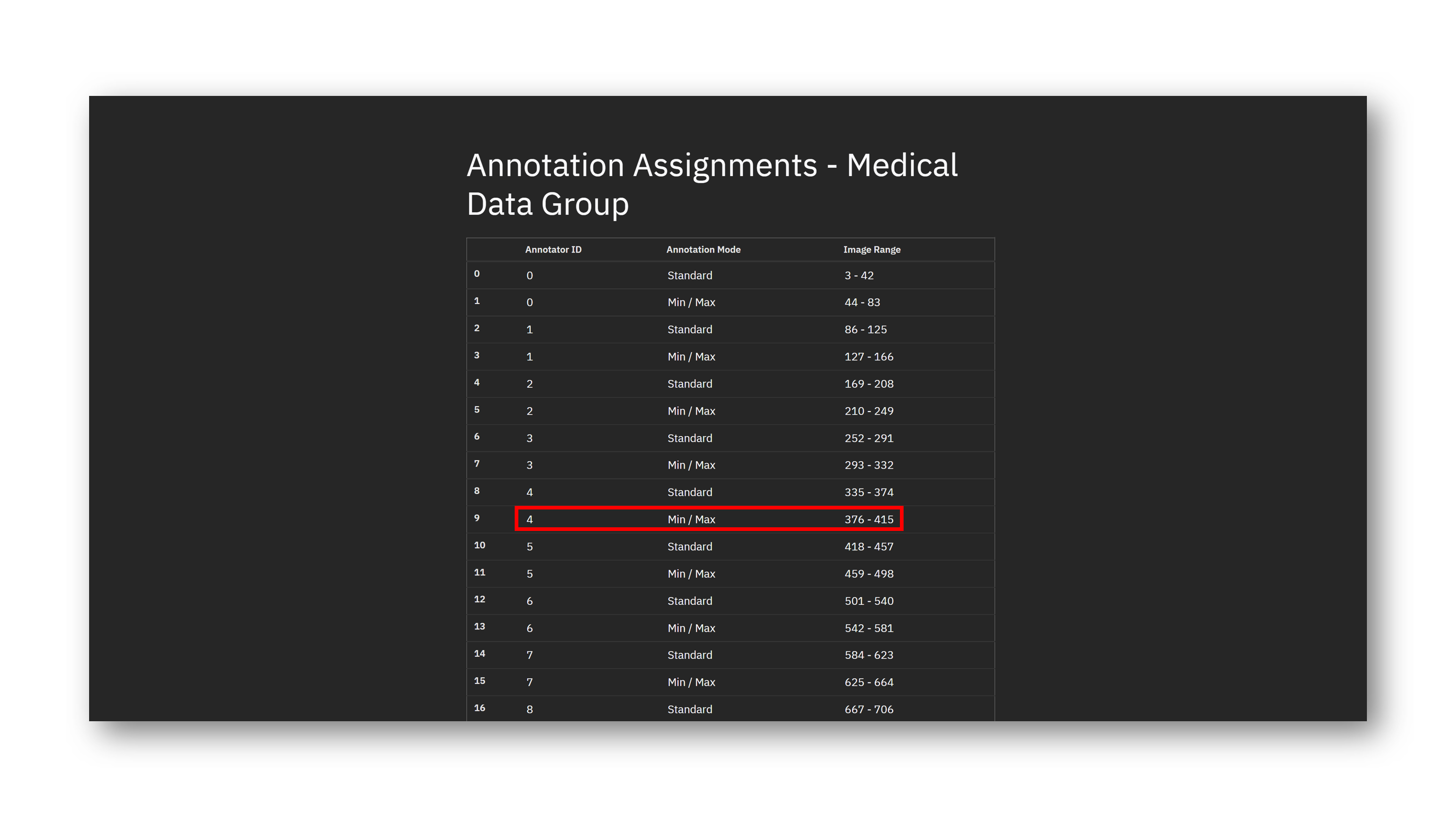
4 ⇝ Locate your assigned image range for min/max annotation. Keep this tab open so you can refer back to it if needed. For instance, suppose that you are annotator ID #4. Your assigned image range for min/max annotation is 376 - 415.
5 ⇝ Locate the image selection box at the top left of the annotation interface.
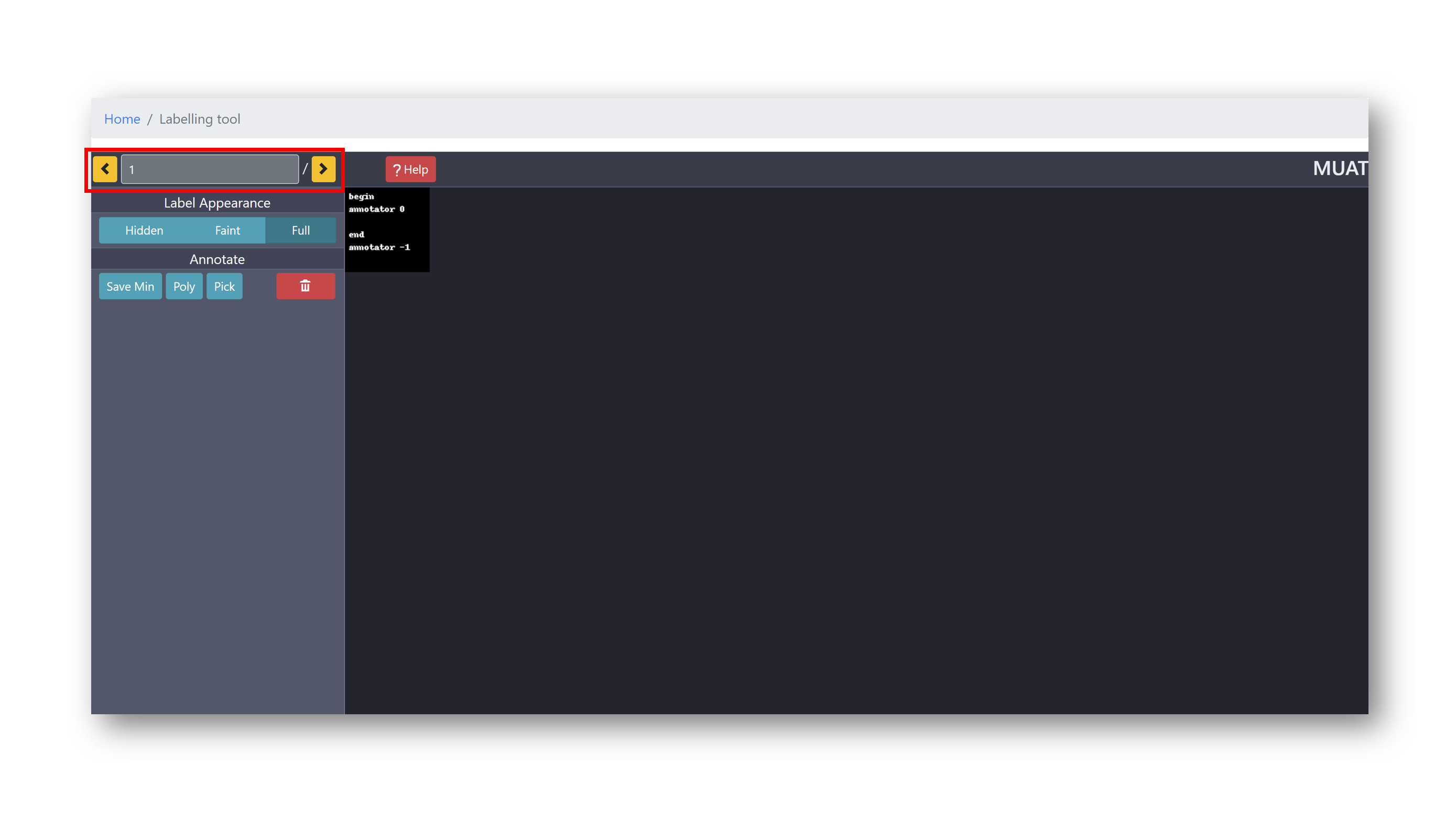
6 ⇝ Type in the first number in your range. This is the first image you will be annotating.
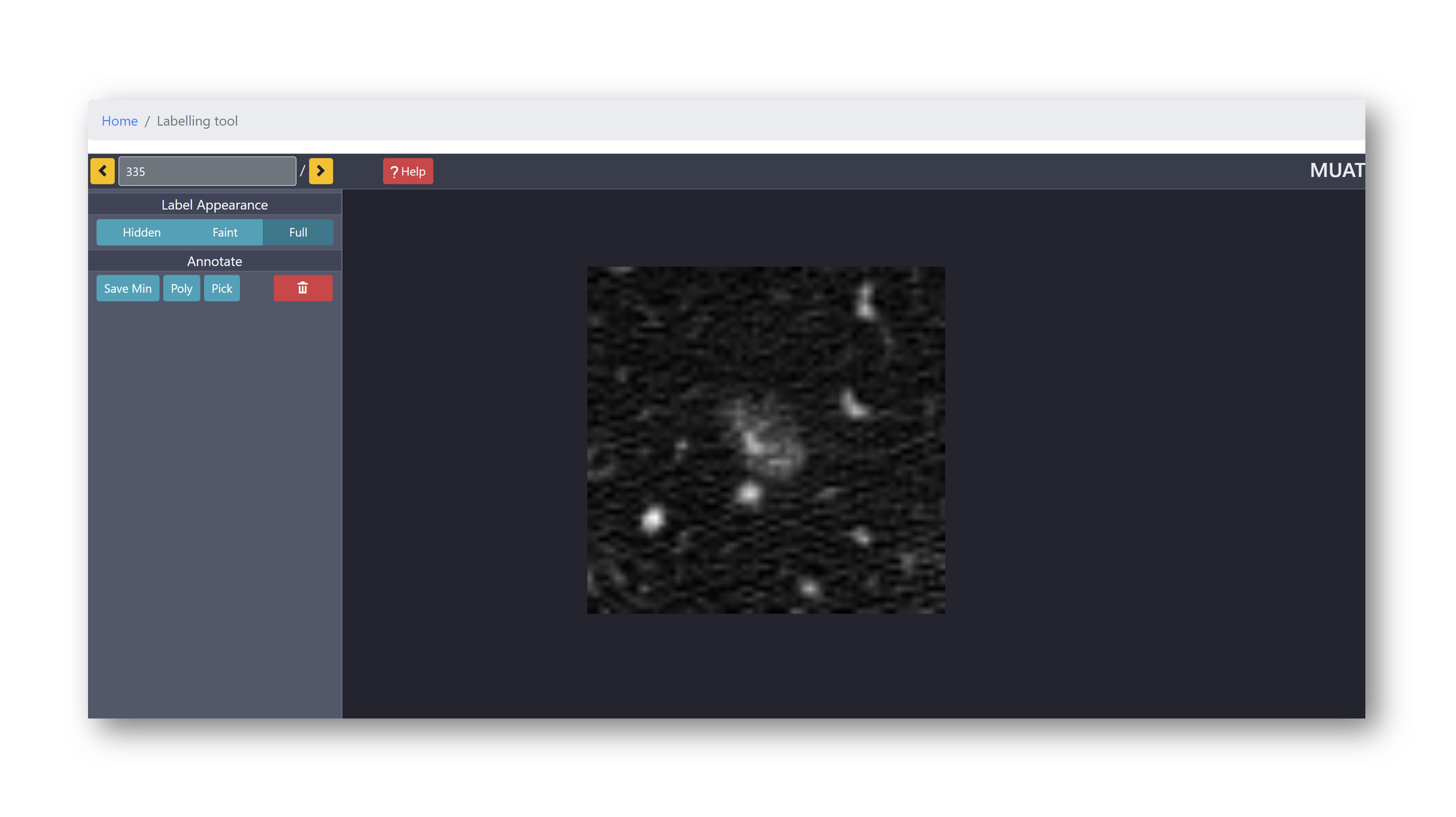
To confirm that this is indeed the first number in your range, you can navigate to the previous image (click the left arrow button): you should see a black image with white text reading "begin min/max annotation mode".
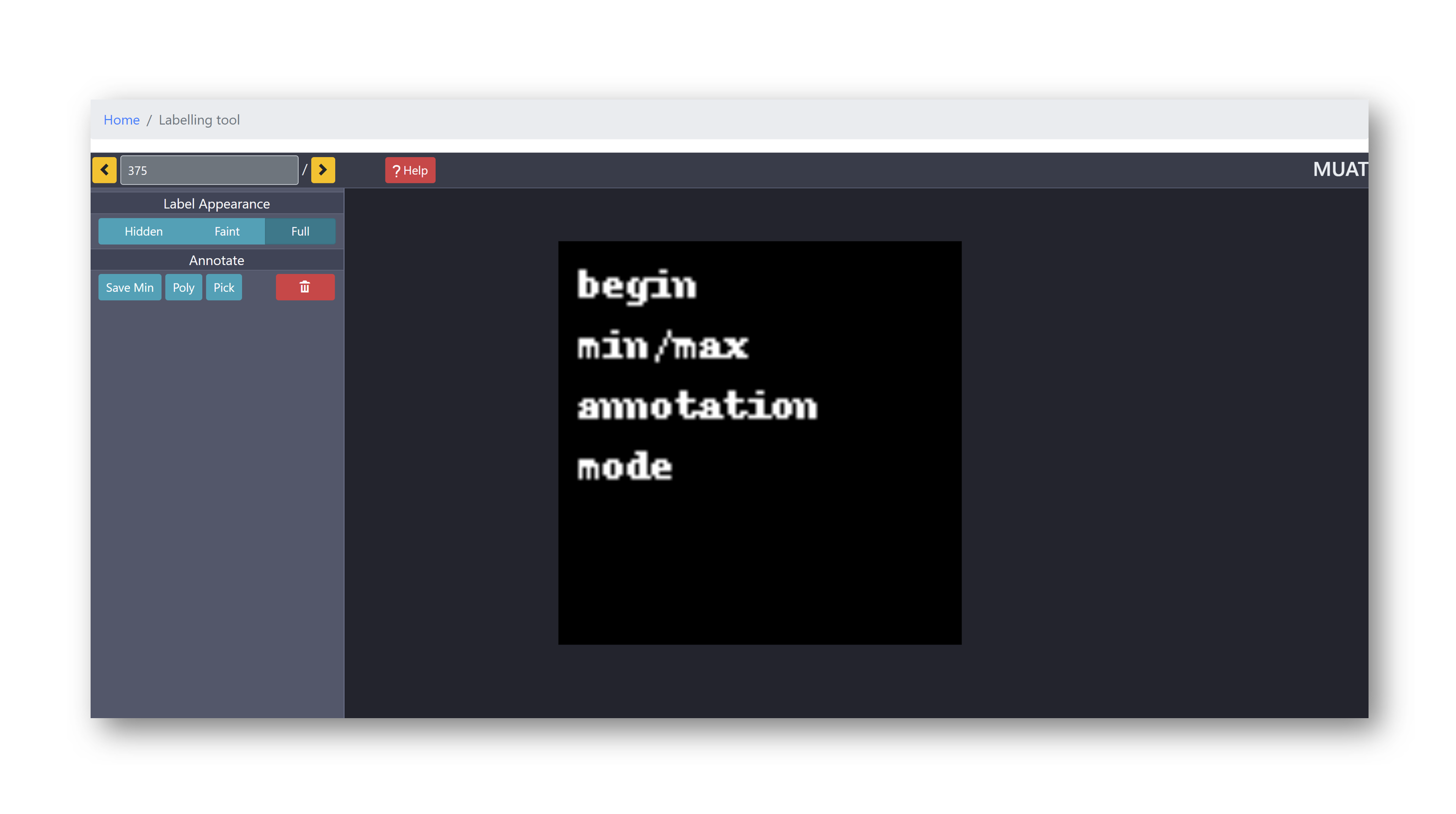
7 ⇝ You will keep on annotating until you hit the end of your range - you will see a black image with white text on it indicating the range has ended, such as the following (but may not contain the same text):
[2] Preparing to Time Yourself
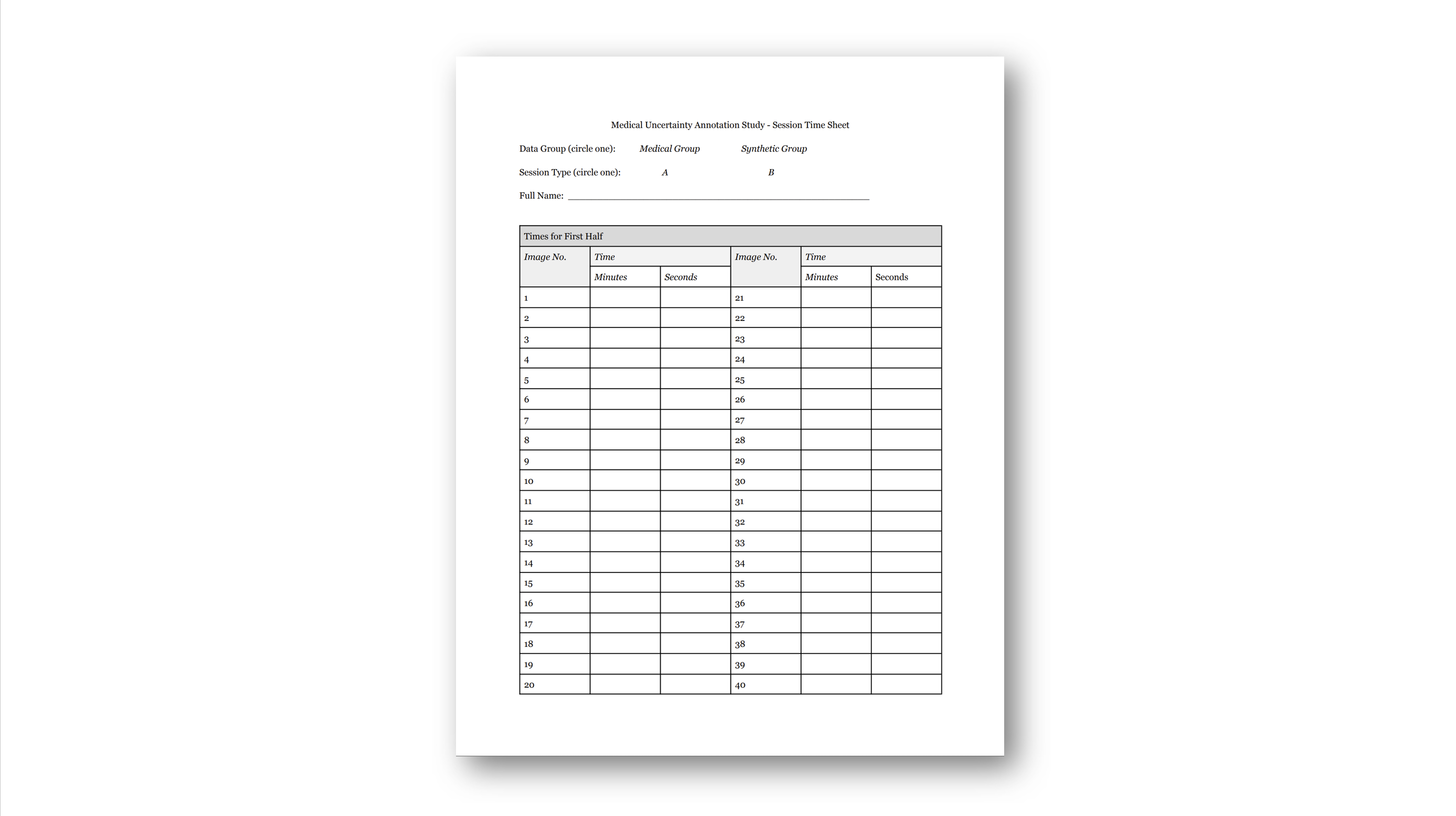
The time will be projected on the board. You will have been given a physical time recording sheet. When you begin annotating, record the current time (minutes and seconds). After you finish annotating an image, record the current time (minutes and seconds) and move on to the next image as soon as you can.
[3] Annotating with the Min/Max Protocol
The annotation interface is designed to be simple. You will annotate a series of images using a poly tool. To zoom in, scroll forward; to zoom out, scroll back. To move the image around, right click on the image and drag it into the desired location.
You will begin by annotating the min hypothesis. Recall that the min region represents the region which is almost certainly to be annotated. To begin, click on Annotate > Poly. This will automatically set you up to draw a polygon. Move your cursor over the image, and click where you want to make a vertex. When you are finished, right-click. This connects your most recently drawn vertex to the first vertex, enclosing a polygon.

If you are unhappy with an annotation, you can delete it. Make sure that the appropriate annotation is selected (it should have red borders). If you created it recently, it may already be selected. You can select an annotation by first pressing Pick, then clicking on the desired regions. Then, click on the red trash can button.

A more convenient way to draw polygons is to 'free-draw', in which you can freely move your mouse to define a curved region. To do this, click on Annotate > Poly, but hold shift and click while you move your mouse around the desired region. When you are finished, right-click. This will similarly connect the most recently drawn point to the first vertex, enclosing the polygon.

Rather than deleting annotations, you can also add and subtract regions to edit the min hypothesis to your liking.

When you are finished annotating the min hypothesis, click Save Min. The annotation will darken, indicating that your min annotation has been saved.

Now, you will draw the max hypothesis. Because the max hypothesis will include the min hypothesis, you will annotate the max region in terms of additions to the min hypothesis. You can do this by clicking on Add and looping in additional regions which could possibly be of relevance. You will still be able to see the min hypothesis 'under' the max hypothesis, even though you cannot edit it anymore.

You can edit your max hypothesis as you wish, just like with the min hypothesis. Note that you will not be able to edit the min hypothesis anymore, since you have locked it after clicking Save Min.

While annotating, you may find it helpful to change the opacity of the annotations to see how well they match the image.

When you are finished annotating the max hypothesis, you can move on to the next image. There is no need to save the max hypothesis. If you would like to restart annotating, simply select all annotations on the page with Pick and delete them all.
Note that it is possible for the max and min hypothesis to be the same (i.e. no changes are made after clicking Save Min) in cases where there is no uncertainty at all - it is clear what should or should not be annotated. That being said, all of the images selected for annotation had high disagreement between radiologists in the LIDC-IDRI dataset.
[4] Examples
Consider the following examples of ways one could annotate an image using the min/max protocol. Feel free to refer back to these examples as needed while you are annotating.





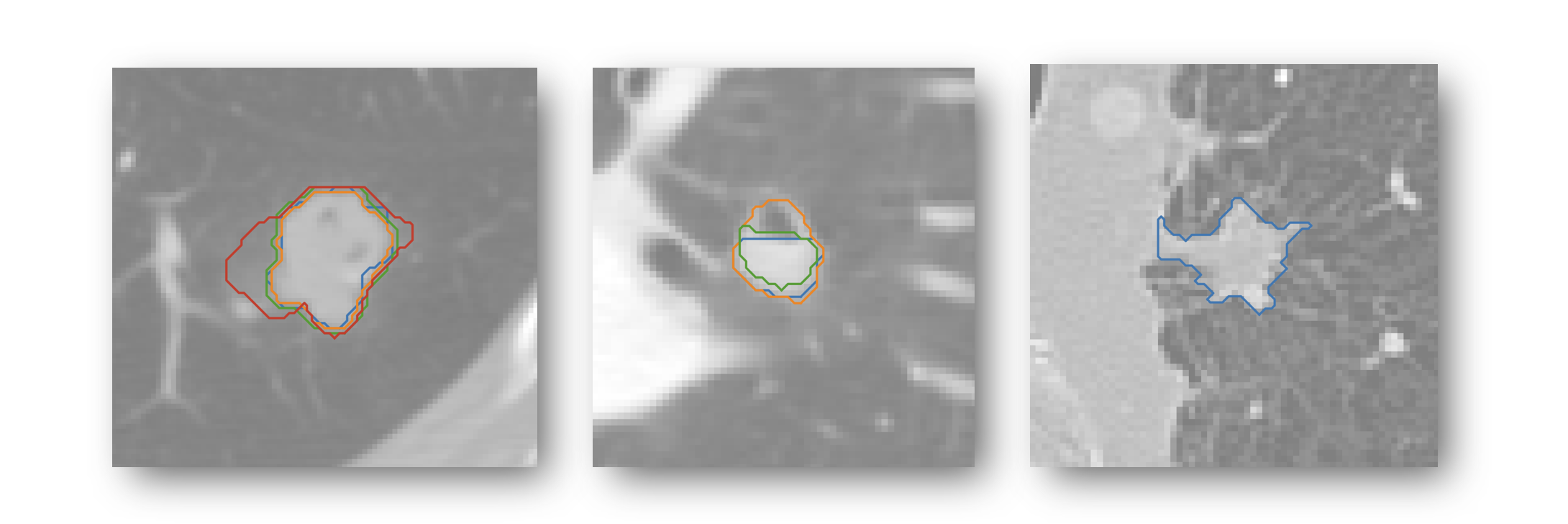
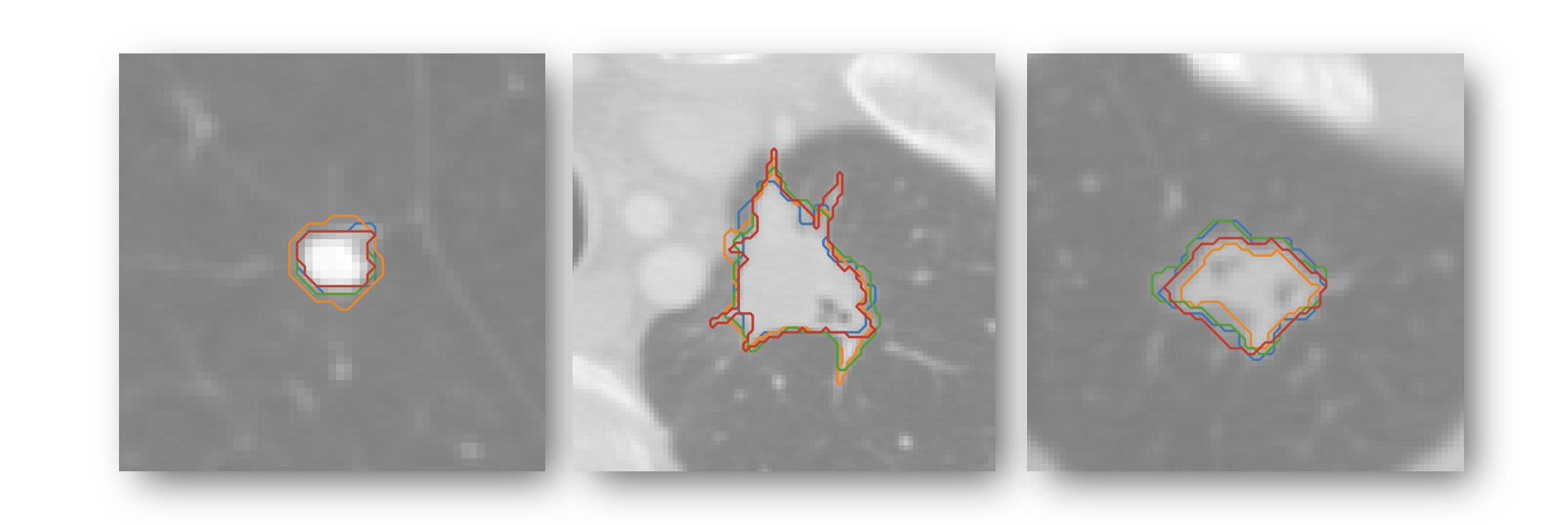
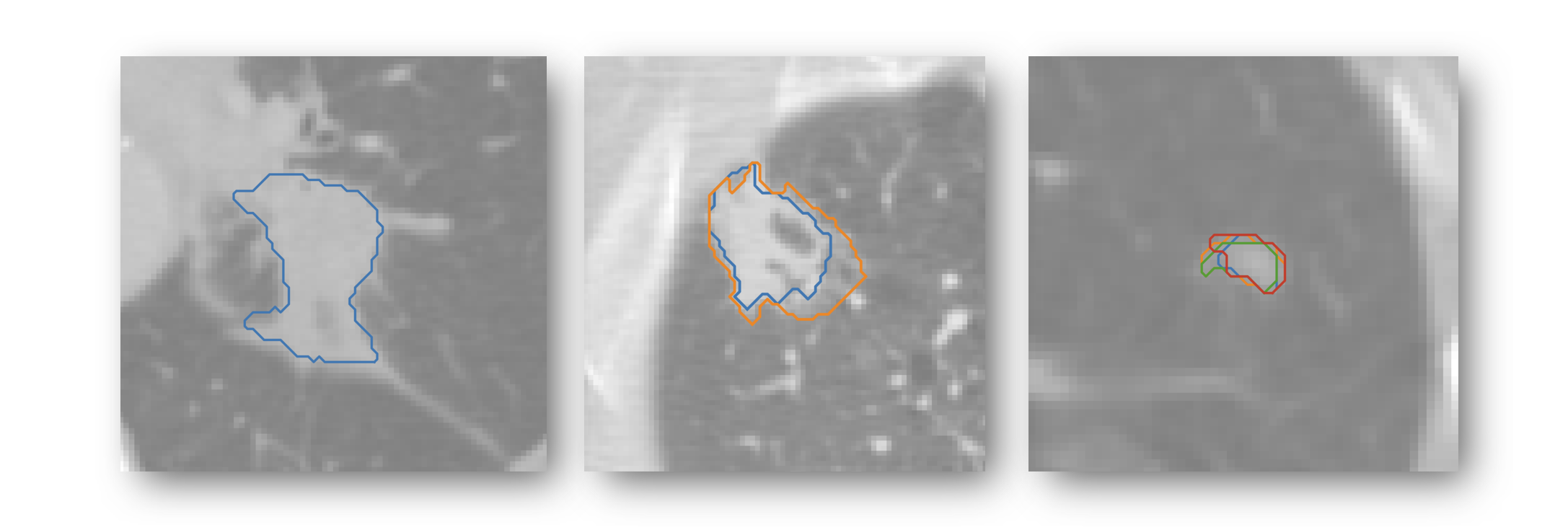
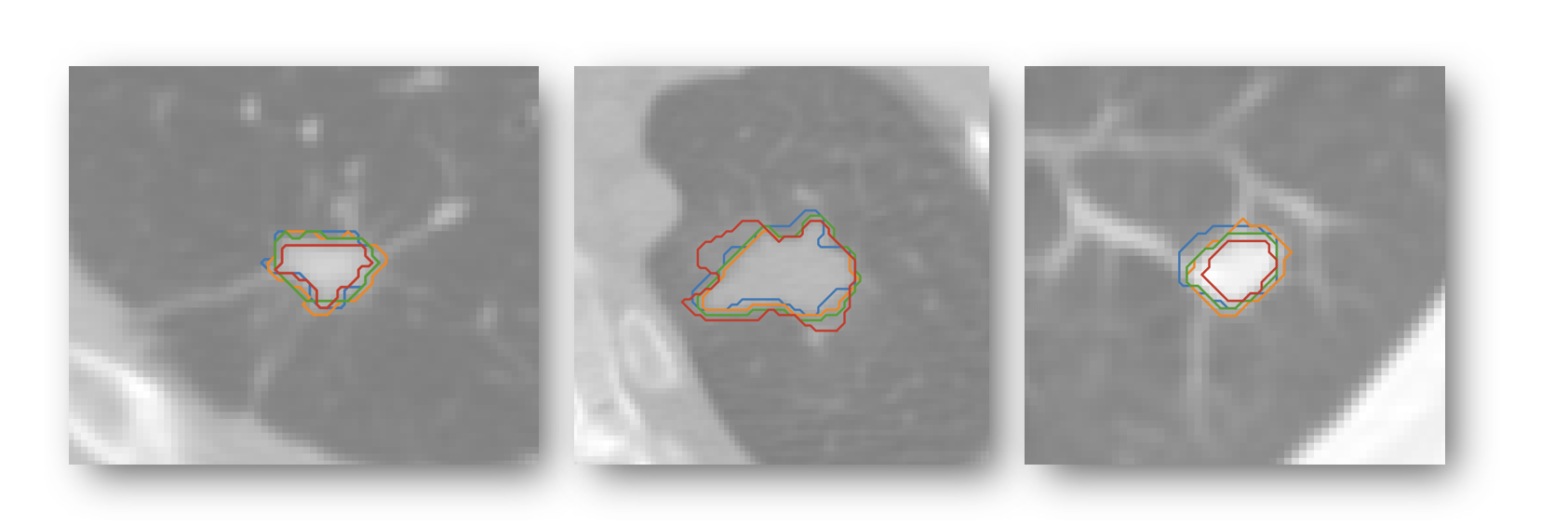
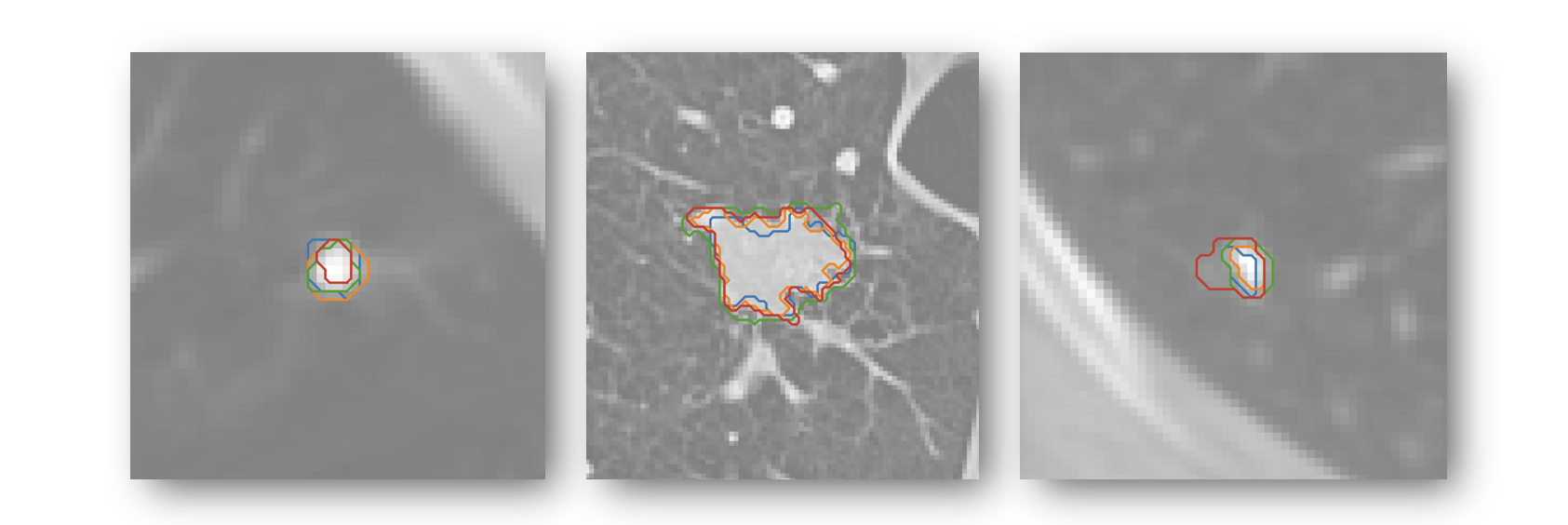
Additionally, use the following examples of annotations directly taken from the LIDC-IDRI dataset as guiding references (even though they are not annotated in min/max protocol format):
[5] Start Annotating
You may now begin annotating your range. Please ask your session lead if you have any questions or difficulties. You should take at most 30 to 40 seconds for each image, although you may be slower at first as you are acquainting yourself with the annotation interface.
[6] Experience Survey
After you are finished annotating, please fill out this quick second-half experience form.
[7] Finished?
Congradulations! You're halfway done. Let's Go →